Worked Example
This section will show a worked example of creating and evolving a software product line using ApleT. This will go through all of the steps within the ApleT process, using the tools from the .NET ApleT toolchain.
We will work through a very simple web app product line, the TodoMonkey product line for todo list applications as introduced by Schnapptack.
The TodoMonkey product line
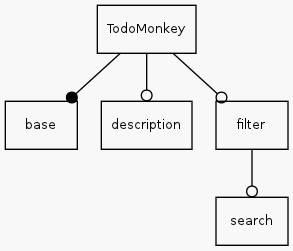
The feature model of the full TodoMonkey Product Line looks like this:
Todo
This feature model might need some refining, e.g. break base into list, add item, label, mark as done, etc
Feature base is mandatory (filled circle). All other features are optional(empty circle). However, feature search depends on feature filter.
- base
- provides a basic todo list. Items can be added. Items have a label and can be marked as done.
- description
- adds a description field to each item. Double click items so see the field.
- filter
- adds filter functionality: show all, show done, show not done.
- search
- adds a search field (searches all the labels).
In this example, we will add a bit of history to the TodoMonkey product line, and show how it could have evolved over time.
The process
Feature model
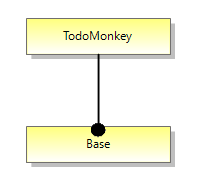
First we will create a feature model. To begin with, we are making this for just one customer, and they only want the most simple, base implementation. The feature model is created and amended by the Feature Modeller using the Feature Modelling Tool. In this case, that’s us, and we’ll use the Feature Model DSL Visual Studio extension.
Product configuration
Customer A wants all the features. After all, that’s why we’re building the product. Let’s make a configuration for Customer A.
Specifications
Let’s make a specification for the Base feature. We’ll put it in a folder called Specifications for now.
Feature: Base
    In order to keep track of things I need to do
    As a Todo Monkey
    I want to be able to maintain a list of todo items

Scenario: Add a todo item
    When I create a new todo item named 'Buy milk'
    Then the new todo item should be in my todolist

Scenario: Mark item as done
    Given I have the following todolist:
        | Todo     |
        | Buy milk |
    When I mark the 'Buy milk' item as done
    Then the 'Buy milk' todo should be recorded as done in my list
Feature: Add Todo

    In order to keep track of the things I need to do
    As a TodoMonkey
    I want to add todo items to a todolist

Scenario: User adds valid todo
    Given the user has input the label 'Take over the world'
    When the user submits the todo
    Then the todo should be added to the user's todolist

Scenario: User adds invalid todo
    Given the user has left the label blank
    When the user submits the todo
    Then the user should prompted to add a label
Build a product and get it tested
Todo
talk about jenkins config, e.g. we need git and msbuild plugins
Todo
need to reference the GOOS book more for walking skeleton, outside in ideas, etc.
Now we need to add a build configuration to our continuous integration setup, that will ‘continuously’ build the product for Customer A and run the specification tests against it so we and the product owner can see how much we have done.
See walking skeleton.
So first of all we need a new build profile in Jenkins.
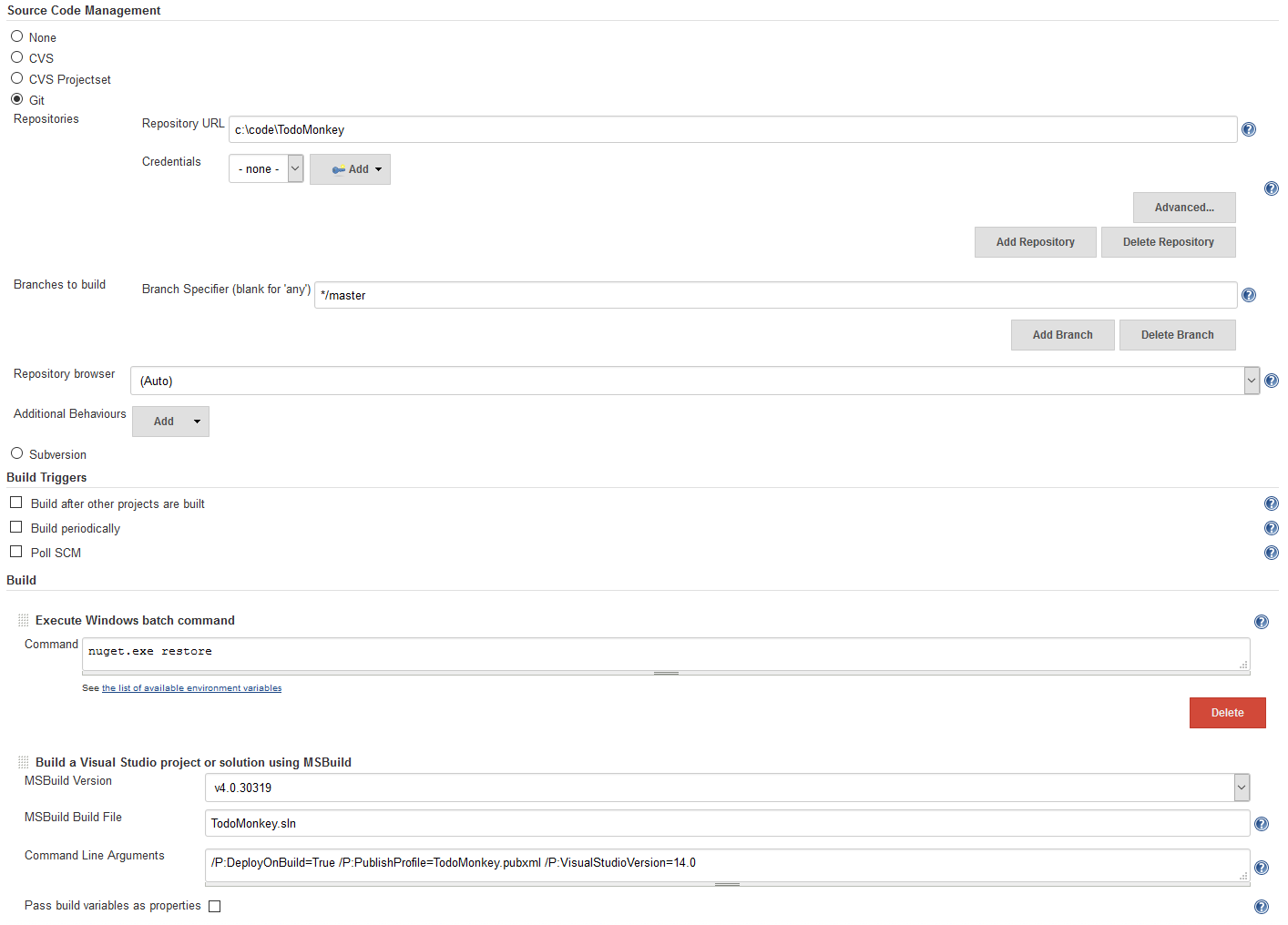
We also need a very naive product implementation. Something that we can run the specification tests against.
We’ll create a basic web app.
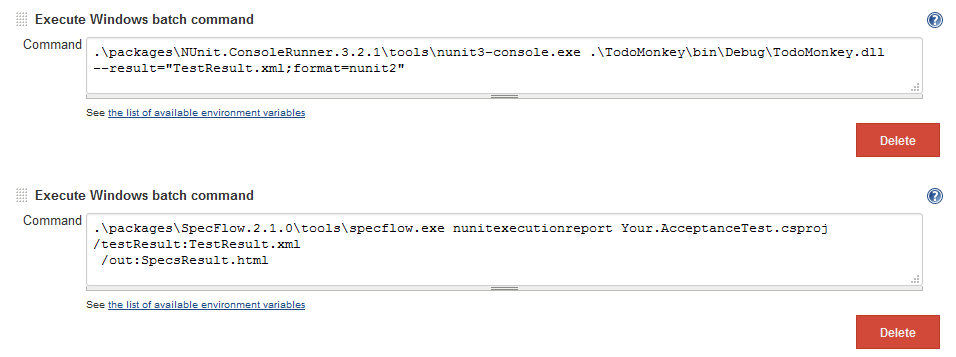
We also need to create a build script that Jenkins can run and produce and deploy our naive product, in order to run tests on it.
The script could be some combination of Jenkins’ own build steps, and calling out to a build scripting language such as FAKE.
Todo
write the test execution code, here probably use browser automation
[Given("the user has input the label '(.*)'")]
public void GivenTheUserHasInputTheLabel(string label)
{
    ScenarioContext.Current.Set(label, "TodoLabel");
}

[When("the user submits the todo")]
public void WhenTheUserSubmitsTheTodo()
{
    var label = ScenarioContext.Current.Get("TodoLabel");

    var result = todoService.AddTodo(label);
}

[Then("the todo should be added to the user's todolist")]
public void ThenTheTodoShouldBeAddedToTheUsersTodolist()
{
    result.ActionSuccessful.Should().BeTrue();
}
Progress report
Todo
discuss manual vs automated build runs in jenkins
We are now able to run the build within Jenkins, which produces a progress report for us.
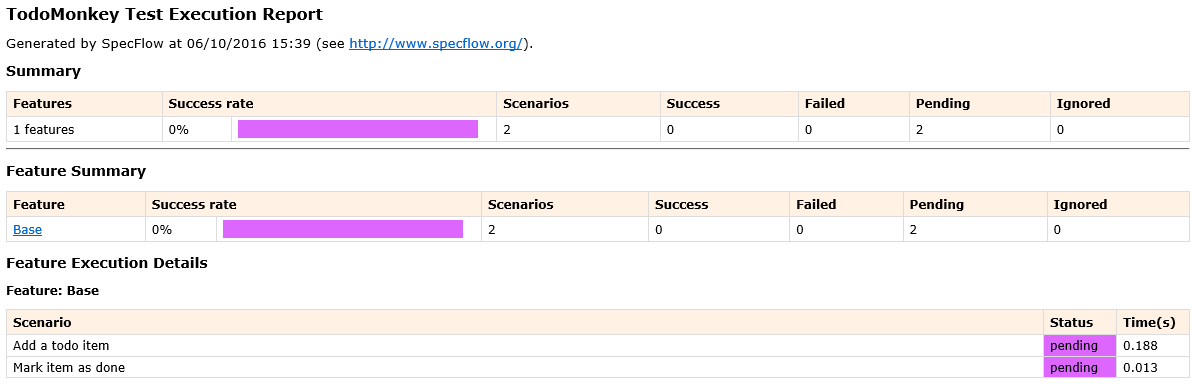
As we can see, the status of the specification tests is ‘pending’ - we haven’t written any test layer code yet.
Writing the test layer code
We want to write the test layer code that tests our production system.
We have a lot of freedom in how we write this test code – it could be full end-to-end tests, where we exercise the entire system from the interface by automation, or it could be a lower level integration test that might avoid the interface. Interface automation has its benefits and its pitfalls – one main benefit being we know we are exercising the system as a user would. However if not carefully written, automation tests can be brittle. And they can be slow to execute, which leads to issues of scale.
Todo
more discussion of automation testing vs lower level
We’re going to write tests that bypass the interface for now. We’re going to test our first scenario.
When I create a new todo item named 'Buy milk'
Then the new todo item should be in my todolist